
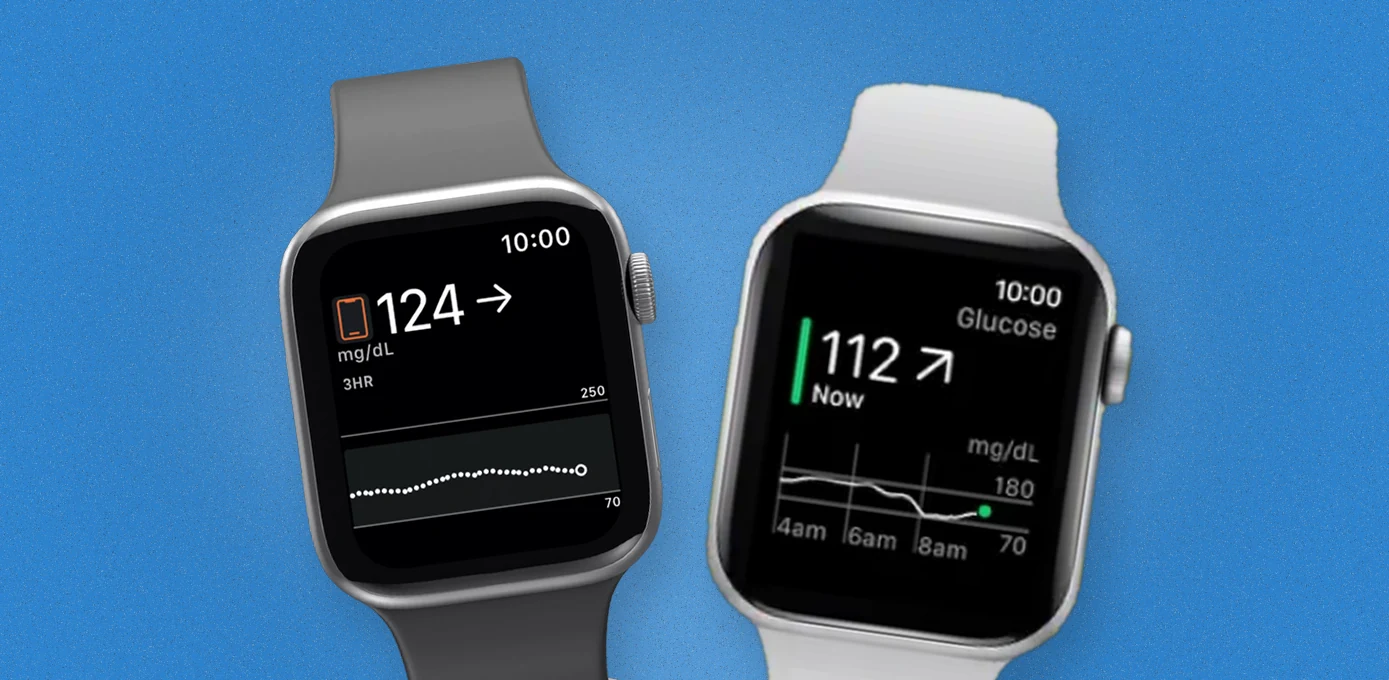
Can your Apple Watch check your blood sugar levels?
If you’re asking whether the watch has a built-in sensor that measures your blood glucose directly, the answer is no. Not the Series 11, and not the brand-new Series 12 or Ultra 4.
But can it give you a quick glance at what’s going on with your blood sugar? Yes, it can, when it’s paired with the right device.
Here’s how it works. Your Apple Watch connects to a continuous glucose monitor (CGM) like the Dexcom G7, mirrors its readings and puts them right on your wrist. The convenience here is simple: you don’t have to carry another device, and you don’t have to pull out your phone every single time.
And it’s not just Dexcom. FreeStyle Libre, Eversense 365 and the twiist insulin pump all have their own Apple Watch apps.
In this post, I’m going to delve deeper into all of this and let you know exactly what Apple Watch is capable of in 2026, as far as blood glucose monitoring is concerned.
Looking for the right watch to buy for glucose monitoring? See our guide to the best glucose monitor watches for diabetes.
Why You Can Trust This Guide
Glucose on a watch is a medical feature, so I didn’t want to rely on Reddit or YouTube comments. I went straight to the source: Dexcom’s US compatibility page (updated September 25, 2026) and its Direct to Watch FAQs, Abbott’s Libre watch app support pages, the FDA’s medical device recall database and its safety warning on glucose-measuring smartwatches, and Apple’s September 2026 launch details. On top of that, I read through reporting from MacRumors, diaTribe, Healthline and others, which you’ll find in the sources at the end. Where two sources disagreed, I went with the manufacturer’s most specific and most recent page.
Where does Apple’s own glucose sensor stand?
Fair warning: this part is for the nerds.
As I researched this, one thing became clear: Apple has been working on non-invasive glucose monitoring for more than 15 years. The project actually dates back to the Steve Jobs era, and its first goal was to flag signs of prediabetes rather than replace a CGM.
So how is it supposed to work? In 2023, Bloomberg reported that Apple’s approach uses silicon photonics. Lasers shine specific wavelengths of light under the skin into the interstitial fluid, the fluid around your cells. The way glucose absorbs and reflects that light is then used to estimate your blood sugar level.
And how far along is it? The 2023 prototype was reportedly about the size of an iPhone and strapped to the upper arm, far too big for a watch. Apple has reportedly tested it on hundreds of people, including people with prediabetes and type 2 diabetes, comparing its results with blood tests.
In May 2026, Bloomberg reported that Apple moved the project from platform architecture chief Tim Millet to Zongjian Chen, who leads Apple’s advanced technologies work. Some see that as a sign the project is finally moving toward a real product, and MacRumors picked up the story.
But when Apple launched the Series 12 in September 2026, it came with a new heart-rate sensor and a Readiness feature, not glucose sensing.
As far as the outlook is concerned, reporting still puts a consumer version several years away, if it ships at all. The thing is, glucose signals through the skin are weak and easily confused with hydration, temperature and movement. And a medical-grade feature would need FDA authorization.
The goal is clear: measure blood sugar without pricking your skin, the same way Apple Watch already reads your heart rate and blood oxygen.
Glucose Monitoring on Apple Watch
As far as CGM monitoring on Apple Watch is concerned, it has made quite a lot of progress in the last couple of years.
Not long ago, your Apple Watch could only mirror what your iPhone showed. If your phone was out of range, your watch had nothing new to show. And if you used FreeStyle Libre, there was no official watch app at all, just third-party workarounds. Here’s how that has changed:
| Then | Now |
|---|---|
| The watch only mirrored your iPhone | Dexcom’s Direct to Watch (2024) sends G7 readings straight to your Apple Watch, so you can leave your phone at home and still see readings and get alerts |
| No official Libre watch app | Abbott has its own Apple Watch app, with readings that update every minute |
| The watch could only display data | The twiist pump lets you deliver mealtime insulin from your wrist |
In this post, I’m only going to cover the top three CGMs in the US market that have official Apple Watch apps: Dexcom G7, FreeStyle Libre and Eversense 365.
I’ll go through each of them in detail, covering its features, how to pair it and its limitations. But first, here’s a quick comparison.
| Dexcom G7 | FreeStyle Libre 3 Plus | Eversense 365 | |
|---|---|---|---|
| Sensor | On the skin, 10 days (G7 15 Day: up to 15) | On the skin, up to 15 days | Implanted under the skin, lasts 1 year |
| New reading every | 5 minutes | 1 minute | 5 minutes |
| Glucose on watch with phone left at home? | Yes, with Direct to Watch | No | No |
| Alerts on your wrist | Yes | Yes (phone or watch, not both) | Yes, via your phone; plus vibration alerts from the arm transmitter |
| Compatible Apple Watches | Direct to Watch: Series 6–11, SE 2nd/3rd gen, Ultra 1–3 | Series 4 or later | Check Eversense’s compatibility page |
| Sharing with family | Dexcom Follow | LibreLinkUp | Eversense NOW (up to 5 people) |
| Fingerstick calibration | Not required | Not required | Required (weekly after the first two weeks) |
| Best for | Phone-free glucose on your wrist | Minute-by-minute readings | No sensor changes for a year |
The short version: if you want your glucose on your wrist without your phone, Dexcom G7 is the only choice today. If you’re on Libre or Eversense, Apple Watch still works well, as long as your iPhone stays close.
Dexcom G7 on Apple Watch
Features
Dexcom G7 works with Apple Watch in two ways:
| Mode | How glucose reaches the watch | iPhone needed nearby? |
|---|---|---|
| Standard | Sensor → iPhone → Apple Watch | Yes |
| Direct to Watch | Sensor → Apple Watch | No, after setup |
I can say with confidence that Direct to Watch is what makes Apple Watch the most capable and most streamlined screen for a CGM today.
Once it’s on, your glucose keeps coming even when your phone is in another room. No Android watch or Garmin can do that yet.
Here’s what you get on your wrist:
- Your current reading and trend arrow, updated every 5 minutes.
- A trend graph, so you can tell a steady 140 from a 140 that’s climbing fast.
- High, low and urgent-low alerts as haptic taps and sounds.
- Watch-face complications that keep your number visible without opening the app.
- Backfill after gaps. If the sensor loses signal, for example while you swim, missed readings (up to 6 hours on the watch graph) fill in once the connection returns.
- Apple Health sync. The Dexcom G7 app can share your glucose with Apple Health on a 3-hour delay, next to your steps, workouts and sleep. It’s great for spotting patterns, not for real-time checks.
Compatible Apple Watches
According to Dexcom’s compatibility list, Direct to Watch works on Series 6 through 12, SE (2nd and 3rd generation) and all Ultra watches running watchOS 10 or later.
Standard mode works on any Apple Watch running watchOS 10.6.1 or later, and you’ll need an iPhone on iOS 18.6 or later (Dexcom G7 compatibility page, updated September 25, 2026).
How to pair Dexcom G7 with Apple Watch
Prefer to watch? This short video walks through it: How to pair Dexcom G7 with Apple Watch (YouTube).
Or, you simply follow these steps:
- Start your G7 sensor on your iPhone in the Dexcom G7 app.
- Install the watch app. It usually installs automatically. If not, open the Watch app on your iPhone, go to My Watch → Available Apps, find Dexcom G7 and tap Install.
- Turn on Direct to Watch (recommended). In the Dexcom G7 phone app, go to Connections → Direct to Watch and follow the on-screen steps.
- Keep alerts mirrored. In the Watch app on your iPhone, keep Mirror iPhone Alerts turned on for Dexcom G7. If it’s off, you won’t get alerts on your watch in either mode.
- Add a complication to your watch face so your reading is visible at a glance.
When you start a new sensor, the phone app prompts you to pair it with your watch again. (Dexcom setup guide)
Limitations
- One watch per sensor. A G7 sensor can pair with only one Apple Watch at a time.
- Sharing needs Wi-Fi. With your phone away, the watch can share readings with your Dexcom Follow followers only on Wi-Fi, not over cellular alone. Readings backfill when it reconnects. If a parent or partner relies on Follow, plan for this.
- Watch-face complications can lag. Here’s one thing I rarely see other guides mention: Apple limits how often complications refresh to save battery. Third-party developer Gluroo reports the Dexcom complication may update only every 15–25 minutes (Dexcom doesn’t publish an official figure). Your alerts aren’t affected, but before a dosing decision, tap through to the app for the latest reading.
- The orange phone icon. If you see it next to your reading, Direct to Watch has paused and the watch is copying from your phone, so keep the phone nearby until it disappears.
- Settings don’t sync on their own. After changing a setting on your phone, open the Dexcom app on your watch while your phone is nearby.
- Focus modes can silence alerts. Allow Dexcom notifications in each Focus mode.
- Battery. A dead watch shows nothing, so build a daily charging habit, such as during your shower.
- Not for treatment decisions. Dexcom says to confirm readings in the Dexcom G7 app or receiver before making treatment decisions.
- Keep the apps updated. In April 2026, Dexcom corrected a defect in its G7 iPhone and Apple Watch apps, versions 2.9.0 through 2.11.2, that could delay glucose readings and alerts when the app ran in the background (FDA recall record, Class 2, posted May 11, 2026). An app update fixed it. The takeaway: compatibility means watch + iPhone + operating system + app version, so keep automatic updates on.
FreeStyle Libre on Apple Watch
Features
Abbott’s official Libre watch app is part of the unified Libre app, which replaces the old FreeStyle Libre 3 app. On your wrist you get:
- Your glucose, trend arrow and history, with readings updating every minute (versus every 5 minutes for Dexcom G7).
- High and low alarms, which you can dismiss on both your watch and phone with one tap, and silence select alarms for up to 6 hours.
- Support for both Libre 2 Plus and Libre 3 Plus sensors.
Compatible Apple Watches
The Libre watch app runs on Apple Watch Series 4 or later with watchOS 10 or newer (Abbott).
How to pair FreeStyle Libre with Apple Watch
- Install the Libre app on your iPhone and start your Libre 2 Plus or Libre 3 Plus sensor (there’s a 60-minute warm-up).
- Install the Libre app for Watch. Abbott notes that existing users may need to update the watch app separately, not just the phone app.
- Turn on notifications. Watch alarms are mirrored from the phone app, so enable the right notification settings on your iPhone.
- Test your alarms with your phone locked and unlocked, so you know where they’ll appear.
Limitations
- It’s tethered. Readings flow sensor → iPhone → watch, so your iPhone must stay within range. Abbott lists the range as up to 20 feet for Libre 2 and 33 feet for Libre 3, unobstructed.
- Alarms go to one device, not both. They follow Apple’s notification rules: if your iPhone is unlocked, alarms appear there; if it’s locked and your watch is on your wrist and unlocked, they appear on the watch.
- Not for treatment decisions. Abbott says to use the Libre app on your phone for dosing decisions, not the watch app.
- Apple Watch only. Abbott’s watch app doesn’t support Android watches.
For the full setup, read my FreeStyle Libre 3 on Apple Watch guide.
Eversense 365 on Apple Watch
Features
Eversense 365 is the odd one out, and that’s its appeal. Instead of a sensor you replace every week or two, a tiny sensor is implanted under the skin of your upper arm and lasts a full year.
- Readings every 5 minutes, sent by a removable smart transmitter worn over the sensor to the Eversense 365 app, and from there to your Apple Watch.
- On-body vibration alerts. The transmitter itself vibrates for highs and lows, even when your phone isn’t with you. No other CGM here does that.
- Glucose and alerts on your Apple Watch, plus Apple Health integration.
- Sharing with up to 5 people through the Eversense NOW app.
How to pair Eversense 365 with Apple Watch
- Get the sensor placed. A trained healthcare provider inserts it in your upper arm during a short in-office procedure.
- Install the Eversense 365 app on your iPhone and pair it with the smart transmitter.
- Calibrate. You’ll do four fingerstick calibrations at the start (2 to 12 hours apart), with readings appearing after the second, then daily calibrations for the first 13 days, then one a week (diaTribe).
- Set up the Apple Watch app and check Eversense’s compatibility page for supported watch models.
Limitations
- Your phone must stay in range. Eversense says the Apple Watch shows your data only when your phone is within range, and any alert on your watch should be checked in the phone app.
- Fingersticks aren’t gone. You’ll still calibrate weekly.
- It needs a procedure. The sensor has to be inserted and removed by a healthcare provider.
- The watch app is basic. In App Store reviews from early 2026, some users report occasional glitches and ask for a watch-face complication, so expect fewer watch features than Dexcom.
Other diabetes devices with Apple Watch apps
| Device | What it can do on Apple Watch |
|---|---|
| twiist insulin pump | View glucose and deliver mealtime insulin from the watch |
| MiniMed 780G insulin pump | Watch app or watch-face display |
| Open-source insulin systems (e.g., Loop) | View data and, in some setups, bolus from the watch (unofficial, not FDA-cleared) |
Third-party CGM Apps on Apple Watch: useful, with caveats
Some people want more than the official apps offer, like bigger numbers, more watch faces or caregiver views. Popular options include:
- GlucoWatch: a watch-only app that shows FreeStyle Libre 2 and 3 readings pulled from LibreLinkUp, with complications and optional high/low vibration alarms. It’s free with optional donations, needs watchOS 10.2 or later, and depends on an internet connection. Its developer is clear it’s independent of Abbott and not for medical use (App Store).
- Gluroo: a free diabetes app with watch-face complications for your own or a loved one’s readings, for Dexcom and Libre.
- Sugarmate: It shows readings through a calendar-event complication on supported watch faces.
The thing is, these apps come with trade-offs. They aren’t FDA-cleared, many rely on cloud data (so they need internet and can lag), Apple still limits how often their complications refresh, and an update from Apple or the CGM maker can break them.
My advice: use them as a convenience, and keep your official Dexcom or Libre app as your source of truth for alerts and decisions.

I created this blog to help people find the right smartwatch for their taste, to keep tabs on the latest news and leaks, and to share my experience with different smartwatches.
Want the latest smartwatch news first? Add SmartwatchCrunch as a preferred source so our coverage shows up higher in your Google results.