
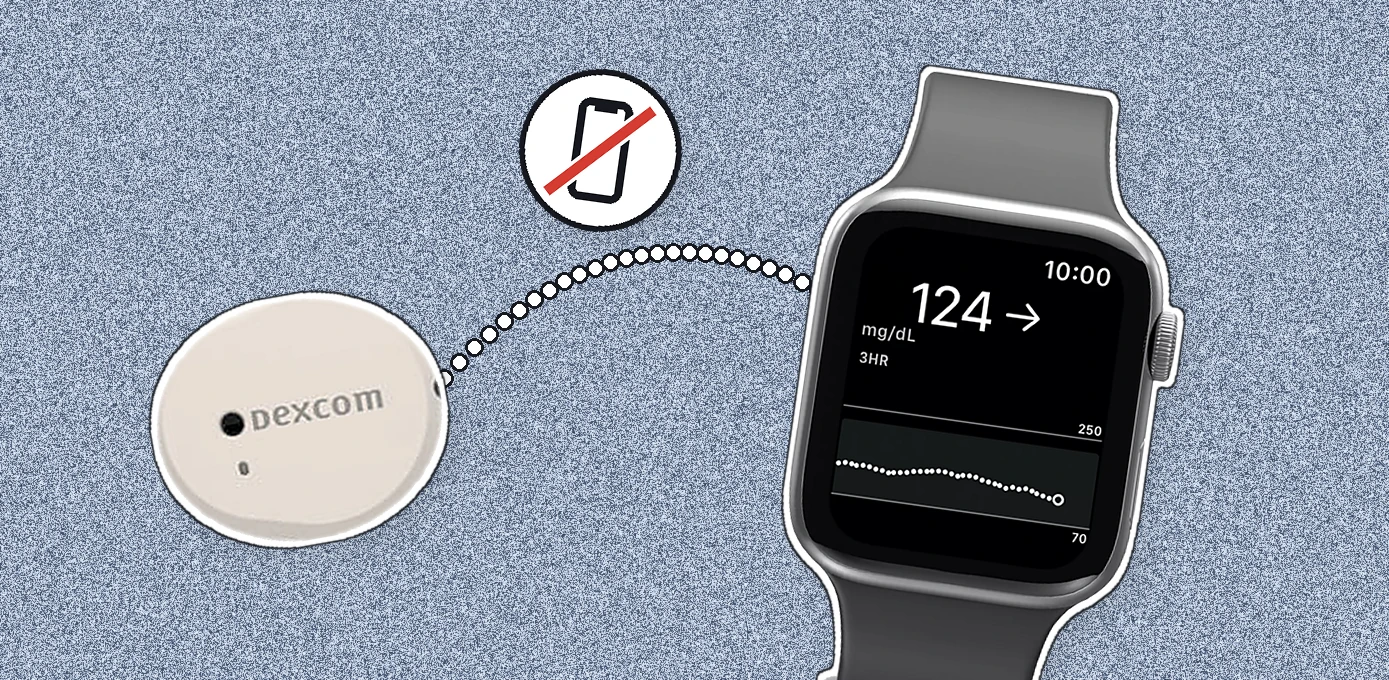
Dexcom Direct to Watch is a feature inside the Dexcom G7 app that lets your sensor connect directly to your Apple Watch. It sends your glucose readings straight to the watch over Bluetooth, so you can see your numbers and get alerts even when your iPhone isn’t with you.
In simple words, it takes the iPhone out of the loop. Your Apple Watch and your Dexcom G7 sensor talk to each other directly.
Right now, it’s the only way to leave your phone at home, go for a walk or a workout, and still have glucose monitoring on your wrist. And it’s exclusive to Apple Watch for now: no other smartwatch supports it.
In this guide, I’m going to explore this feature in detail: how it works, what you need, its limitations, and how to fix it when it won’t connect.
For step-by-step setup, see my guide to Apple Watch glucose monitoring.
How does Dexcom Direct to Watch work?
The Dexcom G7 sensor can work with multiple devices at once. It uses Bluetooth to talk to your phone, a receiver, an insulin pump, and even your Apple Watch.
As I said in the intro, the idea is very simple. With Direct to Watch turned on, your Apple Watch stops mirroring what’s happening on your iPhone and gets readings from the sensor itself. This table makes the difference clear:
| Standard smartwatch mode | Direct to Watch mode | |
|---|---|---|
| Data path | Sensor → iPhone → watch | Sensor → watch |
| iPhone needed nearby | Yes | No, after setup |
| Alerts on your watch | Yes (mirrored from the phone) | Yes |
| Sharing with followers, phone away | No | Yes, but only when the watch is on Wi-Fi |
| Works on | Any Apple Watch that meets Dexcom’s requirements | Specific Apple Watch models only |
Who benefits most from this feature?
- Runners, swimmers and gym-goers who don’t want to carry a phone.
- Kids and teens in sports, where phones often have to be put away. Check how caregiver sharing will work first.
- Anyone who likes to leave their phone at home, or in another room at work.
What you need for Direct to Watch
- A compatible Apple Watch running watchOS 10 or later: Series 6 through 12, SE (2nd or 3rd generation), or Ultra, Ultra 2, Ultra 3, Ultra 4(Dexcom’s list).
- A compatible iPhone with a supported iOS version for the initial setup.
- Dexcom G7 or G7 15 Day. Both support Direct to Watch.
You don’t need a cellular Apple Watch, because the sensor and watch talk over Bluetooth.
Limitations of Dexcom Direct to Watch
- You still need your iPhone for the initial setup and to pair.
- Pairing can be slow. Some users report online that pairing a new sensor takes anywhere from a few minutes to an hour. I cover the fixes below.
- One sensor, one watch. You can’t pair the same sensor with two watches.
- Caregiver sharing needs Wi-Fi. If a parent or partner follows your data with Dexcom Follow and your phone isn’t with you, your watch can share readings only on Wi-Fi.
- Battery drain is a major complaint. Your watch keeps a constant Bluetooth connection to the sensor, which uses more battery. And since an Apple Watch already needs daily charging, this is a real pain point for many users.
- Alerts can stack up. High and low alerts follow the settings in your phone app, and users report repeated alerts on their watch and phone. Plan your alert thresholds with that in mind.
- Software versions matter. In April 2026, Dexcom corrected a defect in its G7 iPhone and Apple Watch apps (versions 2.9.0 through 2.11.2) that could delay readings and alerts (FDA recall record). An update fixed it. Keep the Dexcom app, iOS and watchOS on versions Dexcom lists as supported.
Dexcom Direct to Watch not working? Pairing and connection fixes
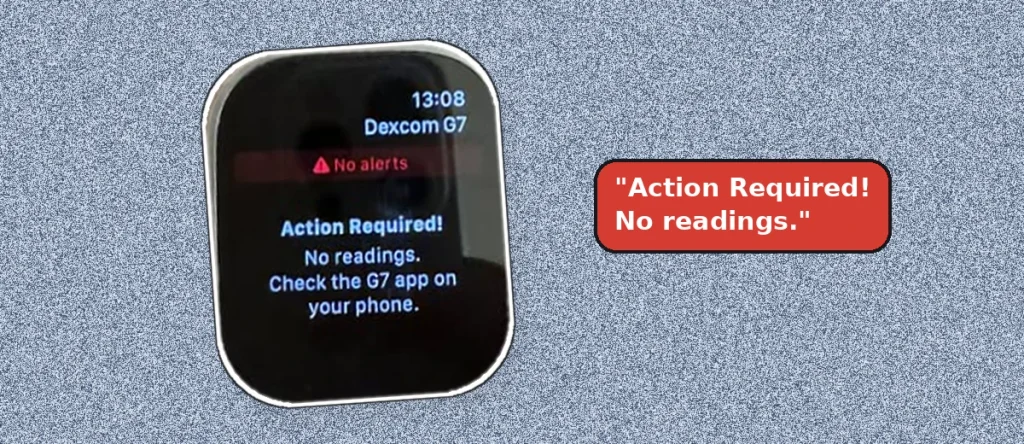
If your Dexcom G7 won’t connect to your Apple Watch, or Direct to Watch keeps disconnecting, you’re not alone. This happens to a lot of users.
For me, it worked perfectly fine on the first try. We use it for my wife, who has type 2 diabetes, on Apple Watch Series 11, and we haven’t had any issues so far.
But while researching for this post, I came across plenty of people who did, along with the fixes that worked for them. Give them a try.
First, check the basics
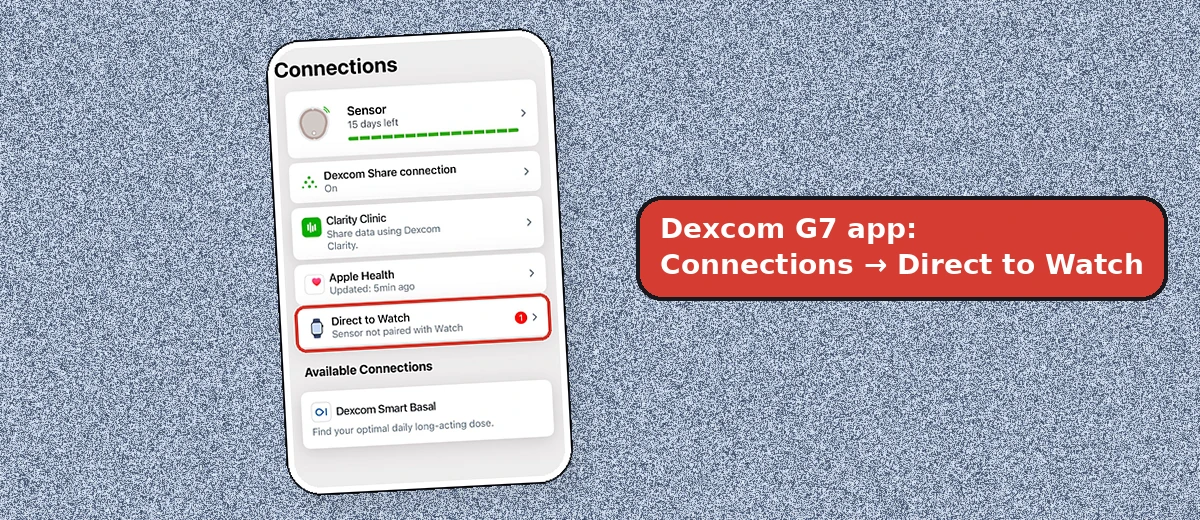
- Your watch model is on Dexcom’s Direct to Watch list and running watchOS 10 or later.
- Your iOS, watchOS and Dexcom app versions appear on Dexcom’s compatibility page.
- Mirror iPhone Alerts is on for Dexcom G7 in the Watch app on your iPhone.
- Dexcom notifications are allowed in every Focus mode.
- You paired the current sensor with the watch after starting it.
Stuck on “searching for sensor” when pairing
- Remove old sensors from Bluetooth. Go to Settings → Bluetooth on both your iPhone and your Apple Watch and forget old Dexcom sensors, ideally at every sensor change.
- Restart the Dexcom app on your watch. Close it from the app switcher, then tap the complication to reopen it.
- Restart your watch and phone, or toggle Bluetooth off and on.
- Pair away from other sensors. Some users say pairing fails if someone nearby is also wearing a CGM.
- Give it time. Pairing can take 10 to 20 minutes, sometimes longer.
Direct to Watch keeps disconnecting or shows dashes
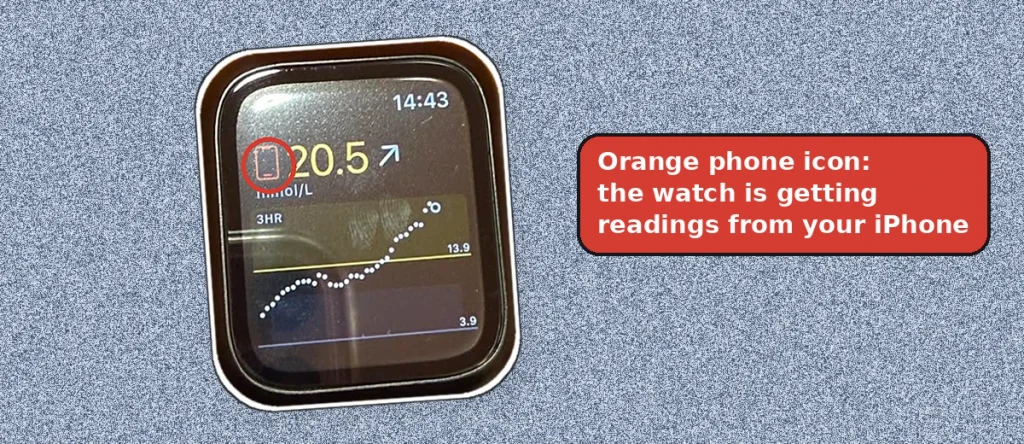
If your watch shows dashes (- – -) instead of a number, or the orange phone icon appears, it basically means the watch has lost its connection to the sensor. As I explained earlier, bring your phone closer, and the watch will get your readings from the phone until the direct connection comes back.
- Keep the watch on your wrist.
- Keep it charged. Low battery can pause background connections.
- Update the Dexcom app, iOS and watchOS once Dexcom lists the new versions.
Your watch-face number isn’t updating
Apple limits how often watch-face complications refresh to save battery, so the number on your watch face can be a few minutes old.
Tap the complication to open the Dexcom app and see your latest reading. Also note that some watch faces don’t support the Dexcom complication at all, so choose a face that does.
How reliable is Dexcom Direct to Watch?
In my research, users with newer watches, like the Series 10, SE 3, Ultra 2 and Ultra 3, were pretty much satisfied. Runners leave their phone at home, parents use it for their kids at sports and in the pool, and several people say it’s the reason they bought an Apple Watch in the first place.
Users with older watches, like the Series 6, were more often frustrated by battery drain and disconnects. That’s pretty understandable, since those watches have older hardware and batteries that have aged.
FAQs
Is Dexcom Direct to Watch free?
Yes. It’s a feature of the Dexcom G7 app; you need a compatible Apple Watch and iPhone.
Why does Direct to Watch keep disconnecting?
The most common causes users report are old sensors still saved in Bluetooth, outdated software, and a watch that’s off your wrist or low on battery. Remove old sensors, update to Dexcom-supported versions, and restart the Dexcom watch app. If it keeps happening, contact Dexcom support.
How long does Direct to Watch take to pair?
Often a few minutes, but users report it can take 10 to 20 minutes or longer with some sensors. Removing old sensors from Bluetooth and restarting the watch app usually speeds it up.
Does Direct to Watch drain Apple Watch battery?
Many users say it does. Because the watch keeps a constant Bluetooth connection to the sensor, expect to charge daily.
Does Direct to Watch work with Galaxy Watch or Pixel Watch?
No. Direct to Watch is Apple Watch only. On Galaxy and Pixel watches, Dexcom readings come through third-party apps, with your phone nearby.
Does Direct to Watch work with Libre?
No. It’s a Dexcom G7 feature. Libre’s Apple Watch app is phone-tethered.
Can I make treatment decisions from the watch?
Dexcom advises confirming readings in the G7 app or receiver before treatment decisions.

I created this blog to help people find the right smartwatch for their taste, to keep tabs on the latest news and leaks, and to share my experience with different smartwatches.
Want the latest smartwatch news first? Add SmartwatchCrunch as a preferred source so our coverage shows up higher in your Google results.